Responsive Design with Tailwind CSS —
Mobile-First Patterns That Actually Work
"Isn't sm: for small screens?" — Nope. Tailwind's breakpoints fire at that width and above. Once you internalize this mobile-first mental model, responsive layouts become a matter of stacking a few prefixed classes.
Understanding "Mobile-First" the Tailwind Way
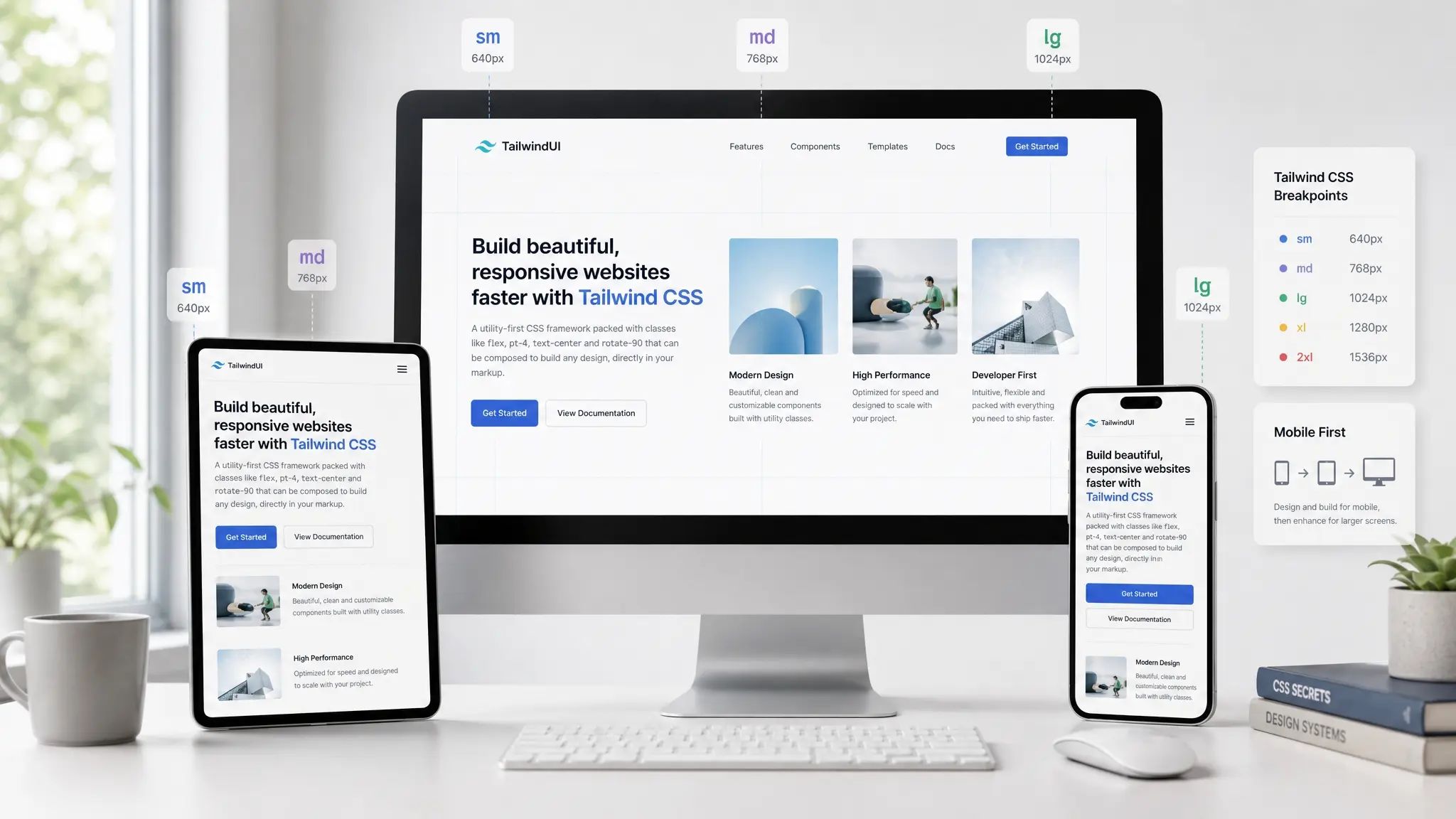
The number one misconception with Tailwind's responsive system: people assume sm: means "on small screens." It doesn't. It means "at the small breakpoint and above" — that is, 640px and wider. The unprefixed class is what applies on mobile.
The mental model is simple: write your mobile styles first with no prefix. Then progressively add prefixed classes to adjust for larger screens. Default is mobile. Prefixes are for bigger viewports. That's it.
/* Prefix    Min-width         Generated CSS */
sm:       40rem (640px)     @media (width >= 40rem) { ... }
md:       48rem (768px)     @media (width >= 48rem) { ... }
lg:       64rem (1024px)    @media (width >= 64rem) { ... }
xl:       80rem (1280px)    @media (width >= 80rem) { ... }
2xl: 96rem (1536px) @media (width >= 96rem) { ... }<!-- This centers text ONLY at 640px+. Mobile stays left-aligned. -->
<div class="sm:text-center">Text</div><!-- Centers on mobile, left-aligns at 640px+ -->
<div class="text-center sm:text-left">Text</div>class="text-center sm:text-left"
This text changes alignment based on viewport width
↑ Below 640px: centered. 640px and above: left-aligned.
Pattern 1: Responsive Card Grids
The single most common responsive pattern in the real world: cards that go from 1 column on mobile, to 2, to 3 on desktop. In Tailwind, it's one line of classes.
<div class="grid grid-cols-1 sm:grid-cols-2 lg:grid-cols-3 gap-6">
  <div class="bg-white rounded-xl p-6 shadow-sm">Card 1</div>
  <div class="bg-white rounded-xl p-6 shadow-sm">Card 2</div>
  <div class="bg-white rounded-xl p-6 shadow-sm">Card 3</div>
  <div class="bg-white rounded-xl p-6 shadow-sm">Card 4</div>
  <div class="bg-white rounded-xl p-6 shadow-sm">Card 5</div>
  <div class="bg-white rounded-xl p-6 shadow-sm">Card 6</div>
</div>
Reading it left to right: default (mobile) is grid-cols-1. At 640px+ (sm:) it becomes 2 columns. At 1024px+ (lg:) it becomes 3. One line of markup replaces three media queries you'd write by hand.
↑ ~639px: 1 col / 640px~: 2 cols / 1024px~: 3 cols
Responsive Navigation
Another everyday pattern: navigation that stacks vertically on mobile and flows horizontally on larger screens.
<nav class="flex flex-col md:flex-row md:items-center md:justify-between gap-4 p-4">
  <a class="text-xl font-bold">Logo</a>
  <ul class="flex flex-col md:flex-row gap-2 md:gap-6 text-sm">
    <li><a class="hover:text-blue-600">Home</a></li>
    <li><a class="hover:text-blue-600">About</a></li>
    <li><a class="hover:text-blue-600">Contact</a></li>
  </ul>
</nav>↑ Below 768px: stacked. 768px+: horizontal with space-between
The key pattern: flex flex-col md:flex-row. Default direction is column (vertical), and at the md breakpoint it switches to row (horizontal). The gap also adjusts: gap-2 md:gap-6. Burn this rhythm into muscle memory — it's the backbone of responsive Tailwind layouts.
max-* Variants and Breakpoint Ranges
Sometimes you need styles that apply only below a certain width, or only within a specific range. That's where max-* variants come in. v4 auto-generates a max variant for each default breakpoint.
max-sm:   /* @media (width < 40rem)  → below 640px */
max-md:   /* @media (width < 48rem)  → below 768px */
max-lg:   /* @media (width < 64rem)  → below 1024px */
max-xl:   /* @media (width < 80rem)  → below 1280px */
max-2xl:  /* @media (width < 96rem)  → below 1536px */
Stack a min-width prefix with a max-width prefix to target a specific range. md:max-xl: means "768px and above, but below 1280px."
<!-- Visible only between md (768px) and xl (1280px) -->
<div class="hidden md:max-xl:block">
  Tablet-to-laptop only content
</div>

<!-- Mobile only (below 640px) -->
<div class="max-sm:block hidden">
  Mobile-exclusive UI
</div>↑ Resize your browser — only one box shows at a time
Show/Hide and Responsive Typography
A pattern you'll reach for constantly: showing or hiding elements at different breakpoints. The classic use case is a hamburger menu on mobile vs. a full nav on desktop.
<!-- Hamburger: visible on mobile, hidden at md+ -->
<button class="md:hidden">☰</button>

<!-- Desktop nav: hidden on mobile, flex at md+ -->
<nav class="hidden md:flex gap-6">
  <a>Home</a>
  <a>About</a>
  <a>Contact</a>
</nav>
hidden md:flex reads as: default is display: none, but at 768px+ it becomes display: flex. The reverse — md:hidden — means "hide at 768px and above." This toggling technique works for sidebars, table columns, secondary content, and more.
Responsive Font Sizes & Spacing
Responsive design isn't just layout. Headings and spacing should scale with the viewport too.
<h1 class="text-2xl md:text-4xl lg:text-5xl font-bold">
  Headline Text
</h1>

<section class="py-8 md:py-16 lg:py-24 px-4 md:px-8">
  <!-- Spacing grows with screen size -->
</section>Responsive Heading
↑ text-2xl → md:text-4xl → lg:text-5xl
Container Queries — Respond to Parent, Not Viewport
Tailwind CSS v4 ships container queries in core — no plugin needed. Instead of responding to the browser width, container queries let you style elements based on the width of their parent container. This is a game-changer for reusable components.
Think about it: a card component placed in a narrow sidebar behaves differently than the same card in a wide main area. Viewport breakpoints can't handle this. Container queries can.
<!-- Mark the parent as a container -->
<div class="@container">

  <!-- Use @md:, @lg: on children -->
  <div class="flex flex-col @md:flex-row gap-4">
    <img class="w-full @md:w-48 rounded-lg" src="..." />
    <div>
      <h3 class="text-lg font-bold">Title</h3>
      <p class="text-sm text-gray-600">Description</p>
    </div>
  </div>

</div>@3xs: 16rem (256px)
@2xs: 18rem (288px)
@xs: 20rem (320px)
@sm: 24rem (384px)
@md: 28rem (448px)
@lg: 32rem (512px)
@xl: 36rem (576px)
@2xl: 42rem (672px)
@3xl: 48rem (768px)Container queries are also mobile-first: @md: activates when the container is 448px or wider. You can use @max-md: for max-width container queries, and named containers (@container/sidebar) to target a specific ancestor.
↑ Responds to the parent's width, not the viewport
Custom Breakpoints and Arbitrary Values
When the default five breakpoints aren't enough, define your own in the @theme directive.
@import "tailwindcss";

@theme {
  --breakpoint-xs: 30rem;    /* 480px */
  --breakpoint-3xl: 120rem;  /* 1920px */
}<div class="grid grid-cols-2 xs:grid-cols-3 3xl:grid-cols-6">
<!-- xs: and 3xl: now work -->
</div>For one-off breakpoints that don't belong in your theme, use arbitrary value syntax:
<!-- Center at 320px+, sky background below 600px -->
<div class="min-[320px]:text-center max-[600px]:bg-sky-300">
  Content
</div>↑ Mobile: stacked / 768px+: 2:1 side-by-side (flex flex-col md:flex-row)
Takeaways
- Tailwind breakpoints are min-width (mobile-first). sm: means "640px and above" — not "small screens"
- Unprefixed classes are your mobile styles. Add sm: → md: → lg: progressively for larger screens
- max-sm:, max-md:, etc. target widths below a breakpoint. Stack them (md:max-xl:) for range targeting
- hidden md:flex is the go-to pattern for show/hide toggling — use it for navs, sidebars, and conditional UI
- Container queries are built into v4 core. Add @container to a parent, use @md: on children to respond to parent width
- Custom breakpoints go in @theme with --breakpoint-* variables. Keep the unit as rem to avoid sorting issues
- For one-off values, use arbitrary syntax: min-[320px]: and max-[600px]: work without any configuration